

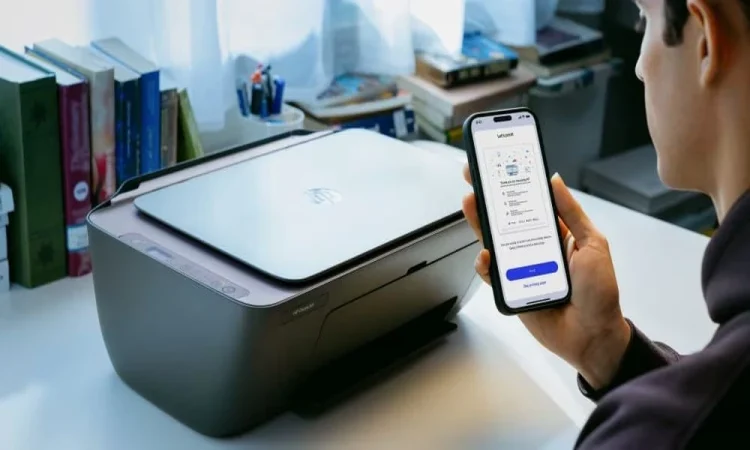

HP printers sit in millions of homes and offices, ranging from compact wireless inkjets to heavy duty office laser machines. Each model ships with a user manual that explains everything from first installation to advanced features many owners never discover on their own. When a manual goes missing, or when a printer was bought second hand, the right online resource turns hours of trial and error into a few minutes of focused reading. This guide explains how to use HP printer documentation effectively for setup, daily use, and troubleshooting.
Finding the Right Manual for Your Model
Every HP printer carries a model number printed on the front or top of the unit, and that number is the key to finding the matching document. A printer labeled DeskJet 2755e is different from a DeskJet 2755, even though the names look almost identical. Type the full model number into a manuals library to retrieve the exact PDF or interactive guide that fits your hardware. The right document includes step by step setup, control panel diagrams, and the specific instructions for your firmware version.
A library that organizes documents by brand and product line, such as the one available at HP printer manuals, saves time by grouping every relevant guide in one place. You can browse by series, by year, or by feature and download exactly what you need.
Initial Setup From the Manual
The first pages of any HP manual cover unboxing and physical setup. Remove the protective tape from every paper tray, cartridge bay, and scanner lid. Skipping this step is the single most common cause of paper jams on a new machine. Install the toner or ink cartridges in the order shown, since some models require a specific sequence.
Power on the unit and follow the on screen prompts. Wireless models guide you through joining a network. Wired USB models often install drivers automatically on a connected computer. The manual lists the exact menu paths for changing settings such as paper size, default tray, and language.
Daily Use and Hidden Features
Most HP owners use a small fraction of what their printer can do. The manual covers features such as duplex printing, scan to email, mobile printing through the HP Smart app, and direct printing from USB drives on supported models. Reading even a few pages of the daily use section reveals shortcuts that save time and supplies.
Practical tip: Many HP all in one printers support shortcut workflows where one button press scans a document and sends it to a preset email address. The manual explains how to configure these shortcuts in five minutes.
For office models, the manual also covers user authentication, secure print queues, and printer pooling. These features turn a basic machine into a managed workgroup tool.
Troubleshooting With the Manual
When something stops working, the manual is usually faster than a phone call to support. Each HP manual has a troubleshooting section that lists common problems and step by step fixes. Paper jams, low ink warnings, network disconnections, and print quality issues all have documented solutions.
Pay attention to the error code list near the end of most manuals. An error like 0xc19a0003 looks intimidating but the manual explains the exact ink system or sensor that needs attention. Following the documented procedure rather than guessing avoids the small mistakes that often turn a simple fix into a service call.
Maintenance and Supplies
A well maintained HP printer lasts years longer than a neglected one. The manual lists recommended cleaning intervals, the exact cartridge or toner part numbers your model accepts, and the firmware update process. Genuine HP cartridges generally produce better results and last longer than the cheapest aftermarket options, but the manual explains how the printer handles non original supplies if you choose them.
Firmware updates often add features and fix bugs. The manual describes how to update through the printer’s own menu or through the HP Smart app. Keeping firmware current is one of the easiest ways to keep an older printer working smoothly with newer phones and operating systems.
Where to Find Documents for Older Models
HP supports printers for many years, but the official site occasionally retires documentation for very old models. An independent manuals library is a useful backup. Sites like manualmachine.com archive manuals across brands and generations, so a thirteen year old LaserJet still has its complete documentation available to anyone who needs it.
For commercial models that may have been refurbished and resold, this archive becomes essential. The serial number on the unit links to a manufacturing date, and the matching manual from that year contains the original specifications for that hardware.
Final Thoughts
HP printer manuals turn a confusing piece of hardware into a tool you can use confidently. Setup goes faster, daily features become accessible, troubleshooting takes minutes instead of hours, and maintenance keeps the unit running well past its expected lifespan. Whether you have just unboxed a brand new model or inherited a five year old workhorse, the right manual is the difference between guessing and knowing. Find your exact model in a documentation library, download or view the matching guide, and keep it bookmarked for the next time you need it.